

Email AI
MessagesRead, write, and organize your email.
 Dear.so
Extension for Dear.so
OdooBring everyday Odoo work into Dear.so. Find business records, understand what needs attention, and prepare your next step with a plain-language request.
For eligible new accounts. Review the recurring price and trial terms before payment.
Connect your Odoo account in Dear.so after installation.
Choose an example to explore the workflow.
Show unpaid customer invoices due this week.
Sample records for illustration.
One conversation for your daily operations
Ask in your own words Use your connected apps Choose what to shareWhat you can do with Dear.so for Odoo
An unpaid invoice, a low-stock product, a weekly sales update. Dear.so helps you explore the Odoo information behind each task without starting a fresh search for every question.
Inside the Dear.so desktop app
Your question and the response stay together in the Dear.so workspace. This Odoo example shows a weekly sales briefing made with fictional company information, ready to read and follow up on.
See how to get started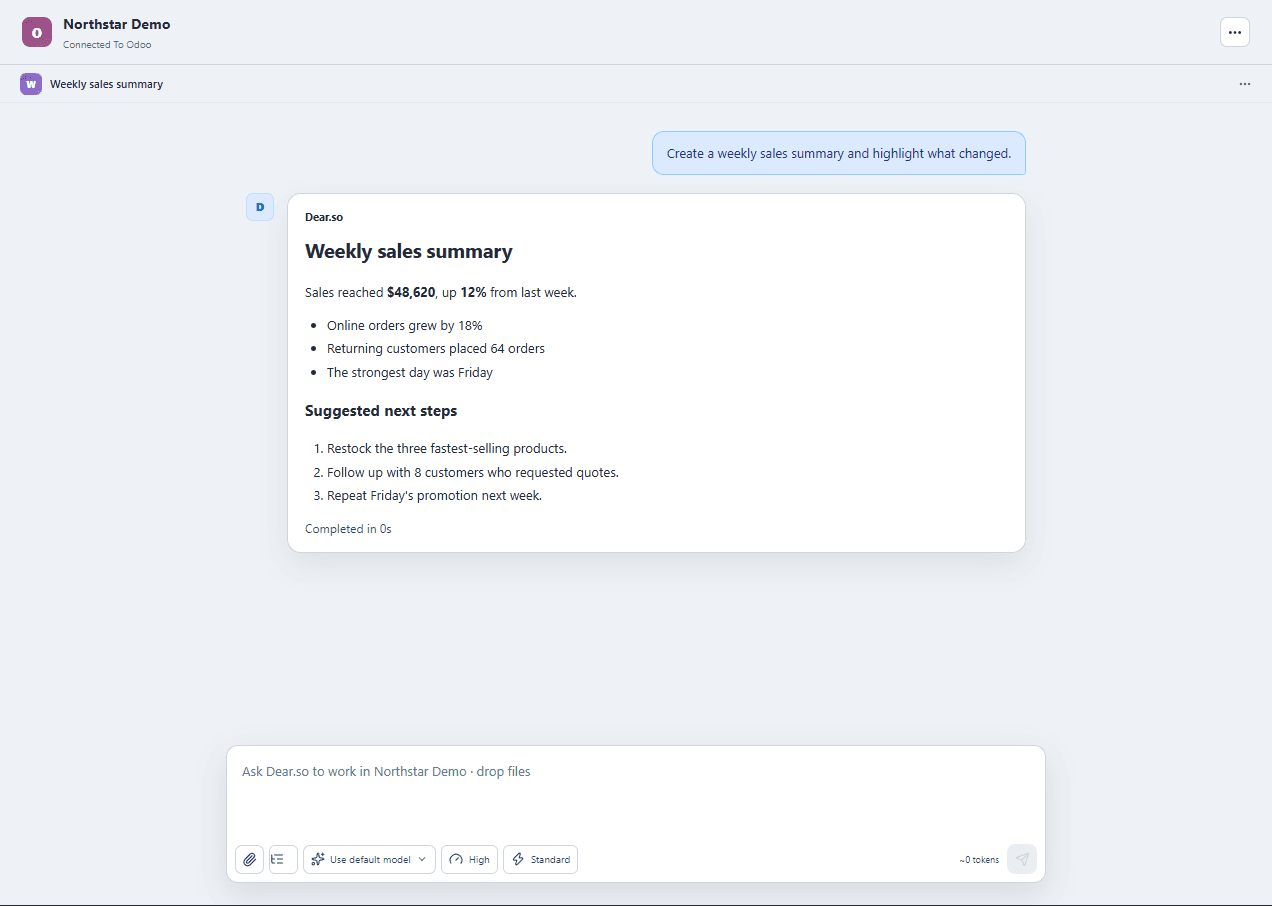
Your choice follows you into the app
Choose Odoo here. We’ll remember your request, so you can spend less time finding extensions and more time on your work.
Use an install button on this page. Already have Dear.so? Open it and confirm. New users can register or sign in to save this choice.
Download and install the desktop app, then sign in with the same account. Complete any required account activation.
Dear.so checks the package and installs a compatible release automatically. If it is already installed and compatible, you’re ready to continue.
Open project setup and connect your Odoo account. Installation alone does not grant access to your service or data.
It is an extension for the Dear.so desktop workspace. Bring everyday Odoo work into Dear.so. Find business records, understand what needs attention, and prepare your next step with a plain-language request.
Yes. The Odoo extension runs inside Dear.so, rather than in this website. You need a Dear.so account and an active plan or trial that allows you to use the app. Have your Odoo instance details and an account with permission to access the records you need.
Choose “Start 7-Day Trial” and register or sign in. We save your explicit Odoo installation request to your account. Download the standard Dear.so app and sign in with the same account. Once your account is ready, Dear.so installs a trusted compatible release, or reuses one already installed. The extension is not bundled into a personalized installer.
No. Installation adds the extension to Dear.so. You then connect your Odoo account through project setup, providing the required credentials or completing authorization. You can do that later.
Your browser may ask permission to open Dear.so. If nothing happens, download or update the app and sign in with the same account. Failed extension requests offer Retry in the app; queued or failed requests can be cancelled. You can continue onboarding while installation runs.
No. A completed request is not repeated on later sign-ins. If you remove the extension, the old completed request will not reinstall it. You can explicitly request it again when you need it.
No. The extension helps you work with Odoo from Dear.so. You still use your existing account or workspace, with its usual permissions and any required subscription.
Dear.so is an independent product from Macrofix Software Private Limited. It is not made, endorsed, or sponsored by Odoo unless we explicitly state otherwise. Third-party names and trademarks belong to their respective owners.
No. They use illustrative records to show the kinds of requests you can make. Connect your own account in Dear.so to work with your information. Results depend on your data, permissions, and chosen AI.
Yes. You can add other available extensions in Dear.so and choose which connected apps to use for a task.
Your work does not stop at one app
Read, write, and organize your email.
Find and update your business information.
Manage your Gmail messages and drafts.
Create and improve your Odoo apps.
View accounts and update business records.
Create and manage your website content.
Work across your Zoho business apps.
Your next task starts here
Start your trial with Odoo selected, then sign in to the Dear.so desktop app.
For eligible new accounts. Review the recurring price and trial terms before payment.


